
All posts by James Moore
macOS: Contacts not synching from Mac to iPhone

macOS has an extremely annoying feature where if you use the “Daughter” or “Son” field in the Contacts application, your iDevice will not successfully synch when using a USB cable.
Synchronization will not display an error message, but digging through the synchservices.log in Console will show that the process failed.
Using the “Child” field instead fixes the issue but working out which of your contacts uses the troublesome fields is not easily accomplished.
Here is a workaround:

- Open up Contacts and highlight all your contacts.
- Click on File / Export / Export vCard.
- Save the file to your desktop (this will be a large vCard file with all your contacts).
- Open the archive with Microsoft Excel.
- If Excel does not fully load the file, go back and export segments of your Contacrs to create smaller files.
- Click on Edit / Find and enter <Daughter> as your search term.
- Click on Find Next.
- Excel will take you to the place in the file where that field exists. Look a few lines above for the N and FN fields – this will be the name of your contact that uses the Daughter field.
- In Contacts, find that person and change the Daughter field to Child.
- Use Find Next to explore the rest of the Contacts file in Excel.
- Repeat the same process for Son.
- In Excel, click on Edit / Find and enter <Son> as your search term.
- Click on Find Next.
- Excel will take you to the place in the file where that field exists. Look a few lines above for the N and FN fields – this will be the name of your contact that uses the Son field.
- In Contacts, find that person and change the Son field to Child.
- Use Find Next to explore the rest of the Contacts file.
- When finished, attempt to synch your iDevice. I would recommend selecting the Replace Contacts option in Advanced: Replace information on this device. If things are still not working, export your Contacts archive a second time to verify you did not miss any of the Daughter/Son fields.

The Child Cocktail

In The Rafters (So To Speak)
Retro Evening
Hello!
Sluggish

This Could Be A Great Riverside Spot

Dinner

Testing Airtame 2
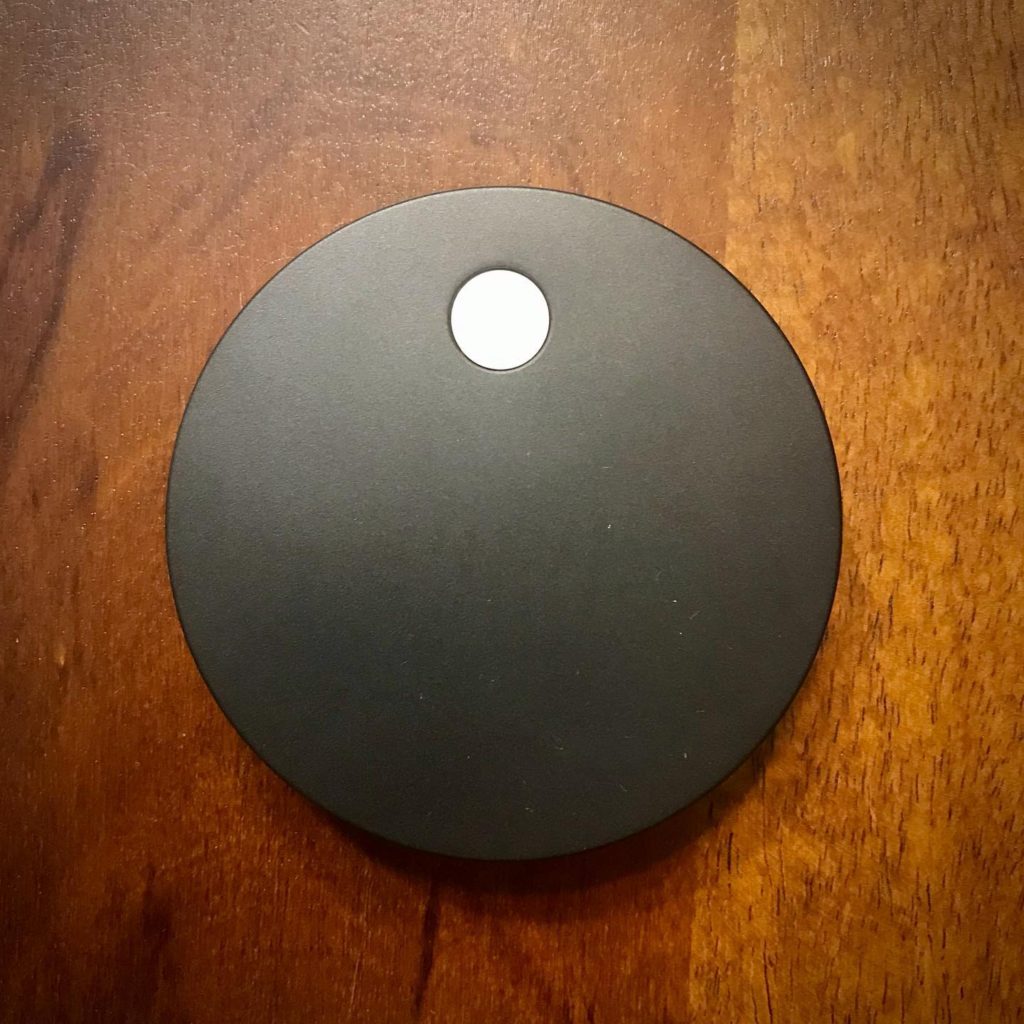
I have been wanting to test the Airtame 2 for quite some time. It looked like it might be the ideal piece of kit to have in my bag to be able to present wirelessly in unfamiliar environments. I recently got the chance. Unfortunately, COVID-19 has prevented me from testing (for the moment) the device in places other than my own home.
So, how did it work out?
The device is attractively designed – a small puck with a magnetic base. A dedicated cable splits to power (USB or electrical outlet) and a HDMI male connection.
Configuration takes place via Airtame Cloud. Airtame Cloud comes in there flavors: Lite (free), Plus ($10 a month), and Custom.

macOS Catalina
Presenting the screen worked perfectly, but the resolution was a little fuzzy. Installing the Airtame app is required to do this. Messing about with the manual settings did not make much of a difference. Video quality was acceptable, but small text was harder to read. Airtame defaults to share (mirror) a secondary (or tertiary) screen, but changing the display settings in System Preferences allows you to decide which screen to mirror.
iOS 14.2
AirPlay worked very well after configuring this in Airtame Cloud (activated Google Cast, Miracast, and Airplay mirroring support) . Resolution good. A little bit of lag sometimes. Noticeably, Netflix would not play on the mirrored display (produced an AVF error).
Android Version 9
Able to cast directly to the Airtame. Resolution good. Netflix worked here with no errors.
Windows 10 Pro
Able to cast directly to the Airtame via the app. Resolution appeared to be a little better than macOS. Was able to extend the desktop via an alternative route:
- Press (Win + P) and click on Project
- Then choose “Extend”
- And after that choose “Connect to a wireless display”
So, ultimately this work well for me at home – apart from Netflix issues. Planning to test in work environments in the future.